Shortcuts and triggers, explained
Learn where an alias matches, what Space does, and when the optional Tab, Enter, or immediate triggers need extra care.

Turn a semicolon shortcut into saved text, or find the same snippet through search when a shortcut slips your mind.
A shortcut is an alias for text you choose to save. Use a name connected to its purpose: ;thanks for an acknowledgement or ;sig for a signature. Choose distinctive aliases that you would not normally type in a sentence.
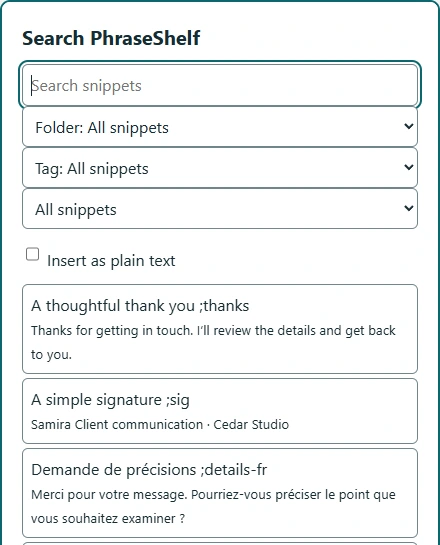
One snippet can have several aliases, including an existing slash shortcut. You can also leave aliases empty and retrieve the snippet through search.
;sig
→
Samira
Client communication · Cedar Studio
Space is the default trigger. Type the alias at the beginning of the editor or after a space, then press Space. The reply replaces the alias and leaves one trailing space. Pasting an alias does not act like typing it.
Tab, Enter, and immediate expansion are explicit choices. Start with Space while learning. Immediate shortcuts need extra care because a short alias can conflict with a longer one sharing its beginning.
Expansion is limited to eligible editors where access and scope allow it. It does not type into native desktop apps, protected browser pages, or every possible website. Use Copy when direct insertion is unavailable.
A snippet inserts your saved wording. It does not send the message. Read the finished text and check that it fits the person and situation.
Save a short acknowledgement, then type a greeting before the alias in Help & practice. Put the caret after ;thanks and press Space. Your saved words should replace only the alias, leaving the greeting intact. If search finds the snippet but typing does not, check the alias and trigger before changing site permissions.