Create your first snippet
Start with a short acknowledgement, save it with a memorable alias, and test it before using it in a real conversation.

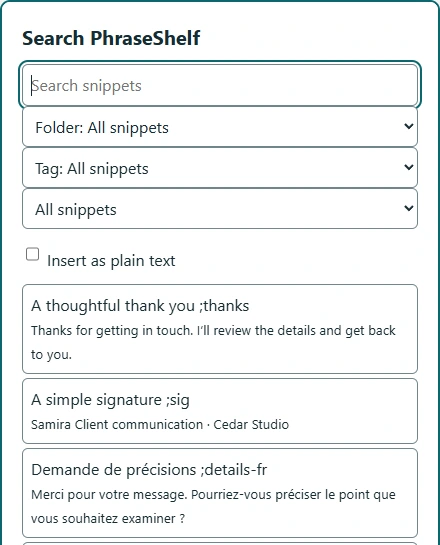
Use folders, tags, favorites, and search to keep useful snippets close without memorizing every shortcut.
Folders work well for a broad context such as Client work or Personal. Tags can cut across those folders: follow-up, scheduling, or Arabic. Favorites keep your everyday replies easy to reach.
Use a title that describes the message’s purpose, not just the shortcut. “Ask for project files” is easier to recognize than “Reply 7”. A snippet can have several aliases or none.
Search can find titles, aliases, body text, tags, and folder names. In an eligible website editor, Ctrl+. or Cmd+. opens the palette. The browser command has a separate default: Ctrl+Shift+Space or Command+Shift+Space.
Try searching for a purpose like “meeting” before adding another copy of a message. Search tolerates some accents and Arabic marks; shortcut matching follows its own stricter rules. Search never needs to resolve a template’s clipboard or page values.
Review outdated names, dates, policies, and links when your work changes. Keep one reusable source for a repeated signature. Use revisions or recoverable trash for local editing mistakes, and independent backups for browser-profile loss.
There is no product-imposed snippet-count cap. Real device and browser storage limits still apply, so a tidy library and tested backups remain worthwhile.
For client work, begin with a folder called Clients and titles such as “Request source files” and “Ask for draft feedback”. Tag both with the project only if you need that grouping. Search for “files”, compare the preview, then insert or copy the matching reply. When two snippets do the same job, keep the better source and give it the useful aliases.